
Smartphone Guides
Review how to Navigate with ease
Please tap the box that matches the brand of your phone:
Apple, Android, All Smartphones or Not Sure?
In these Smartphones Guides you find specific Video -Tutorials related to your smartphone brand.
Depending on your smartphone, some things may look a little different. Still, the basic logic, symbols and icons stay the same - and your intuition will guide you more than you think
A useful guide to the right instructions
↓
Your Phone’s Visual Language:
Learning Through Intuition
“Follow the Clues: How Icons and Symbols Gently Guide You”
Not Sure What Phone You Have?
1. Look at the Device
Most smartphones show the brand on the back:
Apple → iPhone
Samsung, Motorola, LG, Google, etc. → Brand name printed on the back
Some phones have removable batteries—check under the battery for brand/model info.
2. Check the Box or Receipt
The original box or store receipt usually lists the brand and model.
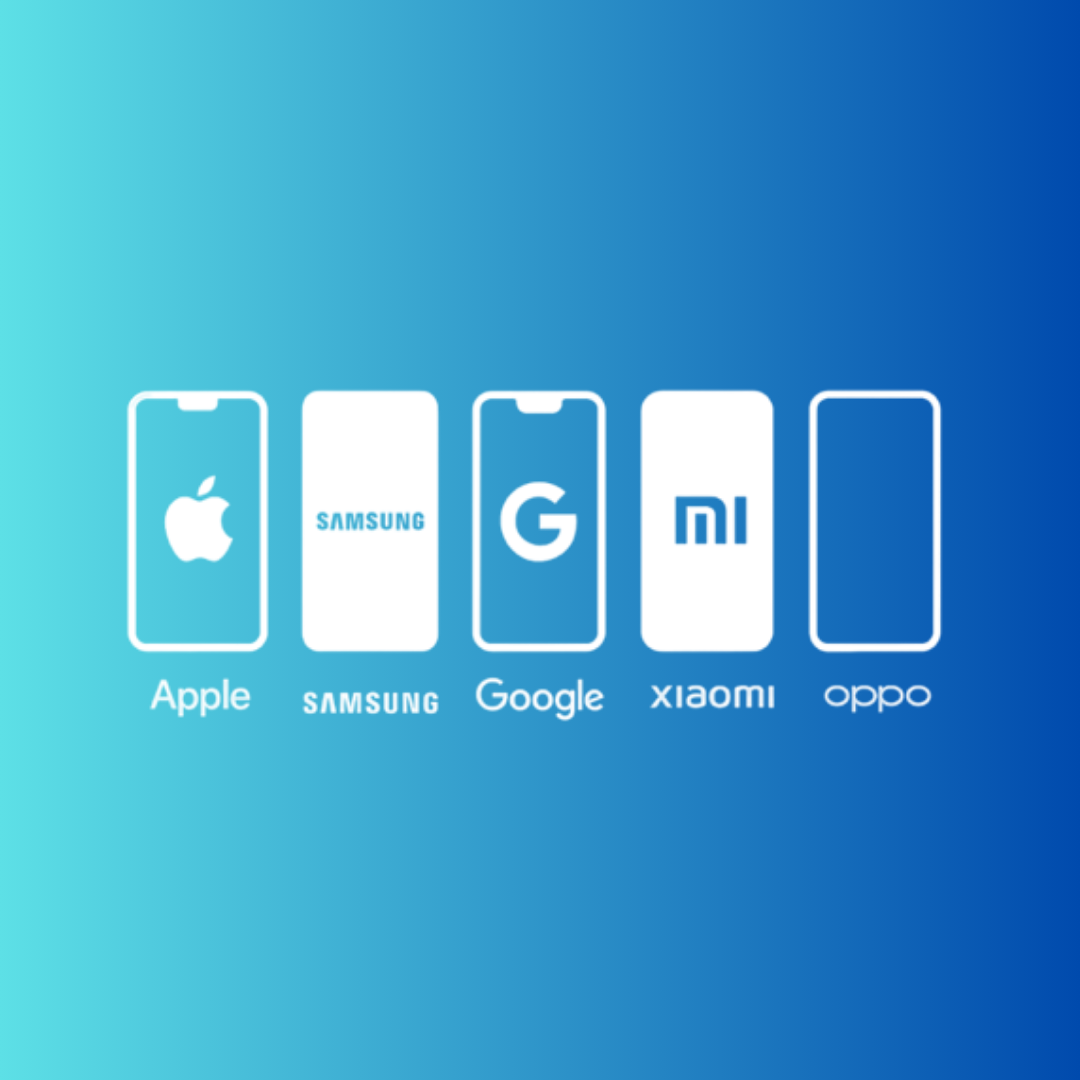
3. Use the Visual Guide
Look at the logos and phone shapes.
This smartphone guide helps you quickly identify your phone. You can also use our interactive tool — the little circle on the screen — to get in touch with us.
Install the Ingeniosus App
Add Ingeniosus to your phone in seconds
Ingeniosus works like an app you don’t need to download from an app store.
Just add it to your home screen and open it anytime with one tap.
You will see a phone symbol with an arrow (📱⬇️) at the top of your screen.
It stays visible as you scroll.
This icon means you can install Ingeniosus like an app.
-
If you don’t see the install button:
Open Safari
Visit ingeniosus.com
Tap the Share button (⬆️)
Tap “Add to Home Screen”
Tap Add
-
If you don’t see the install button:
Open Chrome
Visit ingeniosus.com
Tap the menu (⋮)
Tap “Install app” or “Add to Home screen”
Tap Install